
Guide: Hacker101
Nervous about a “hacking” website? Take a breath - you are in the right place, and this guide assumes you have never seen a security tool in your life. By the end you will know exactly what Hacker101 is, how to make a free account, how to find and watch a lesson, and how to finish the graded worksheet and turn it in on Canvas. No coding, no security background, and no TA required.
1. What this is and why CIS 350 uses it
Hacker101 (https://www.hacker101.com) is a free training website made by
HackerOne, a well-known company that helps organizations find and fix security holes.
It was built to teach beginners how security problems happen, using short video lessons
and an optional practice playground. It is used by students and career-changers all over
the world, and it costs nothing.
Think of it like a driving school. Before anyone hands you the keys to a real car on a real road, you sit in a classroom and watch how the road works: what the signs mean, what causes accidents, and what safe driving looks like. Hacker101 is that classroom for digital security. You learn how attackers think and where systems go wrong, so that one day you can build and defend things that do not break.
CIS 350 uses Hacker101 for four short “guided-lesson” activities. In each one, you watch a lesson that lines up with the week’s topic, then answer a worksheet that connects what you saw to the lab and lecture. We chose it because it explains real security ideas in plain language, without asking a business student to write a single line of attack code.
To be crystal clear: everything on Hacker101 is a deliberately built practice environment. You are learning about vulnerabilities the way a doctor studies a disease - to understand and prevent it, never to harm a real system. More on that in the ethics section below.
2. Before you start / first-time setup
You need a free Hacker101 account to watch some content and to keep your place. It takes about two minutes. All you need is an email address and a browser (Chrome, Edge, Firefox, or Safari all work).
- Open a new browser tab and go to
https://www.hacker101.com. You will land on the Hacker101 home page with a dark background and a menu across the top. - Look at the top-right corner for a link that says Sign in or Log in. Click it.
- Hacker101 sign-in is handled by its parent site, HackerOne. You will see a box asking for an email and password, plus a Sign up (create account) option. Click Sign up if you do not have an account yet.
- Enter your email address, pick a username, and choose a password. Use a password you do not use anywhere else (you are in a security class - practice what we preach!).
- Check your email inbox for a confirmation message and click the verification link inside it. If you do not see it in a minute, check your spam or junk folder.
- Return to
https://www.hacker101.com, sign in, and you are ready.
The sign-up screen is deliberately simple - an email, a password, and one button. Here is roughly what it looks like:
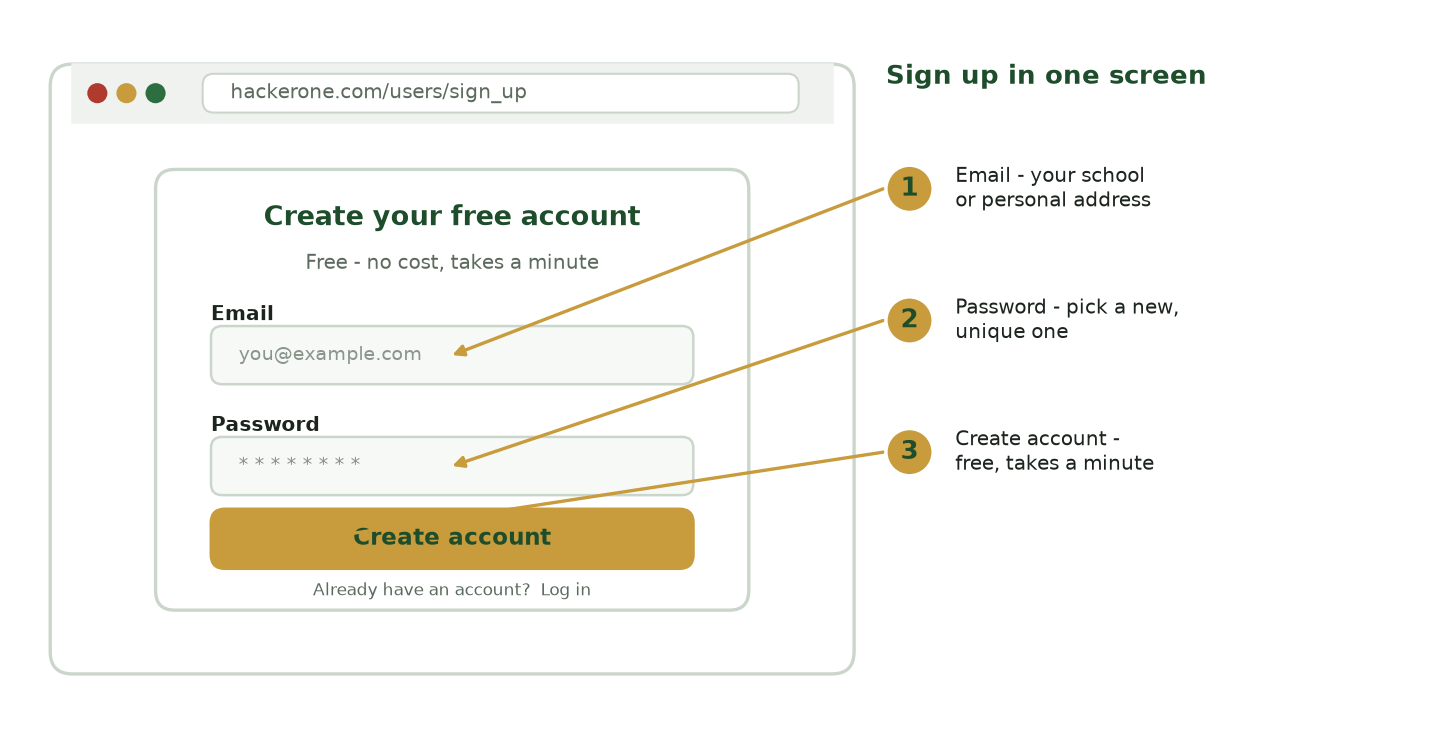
Figure 1. The free-account sign-up form: enter an email, choose a password, and click Create account. Illustration - your screen may differ slightly.
3. A guided tour of the interface
Hacker101 is a simple website, not an app you install. Here is the lay of the land in words. A rough sketch of the home screen:
+---------------------------------------------------------------+
|  HACKER101            Videos   CTF   Resources     [Sign in]  |  <- top menu bar
+---------------------------------------------------------------+
|                                                               |
|     Free classes for web security                             |
|     [ Start learning ]                                        |  <- big welcome area
|                                                               |
+---------------------------------------------------------------+
|   Lesson card   |   Lesson card   |   Lesson card   | ...     |  <- grid of lessons
|   (title +      |   (title +      |   (title +      |         |
|    length)      |    length)      |    length)      |         |
+---------------------------------------------------------------+
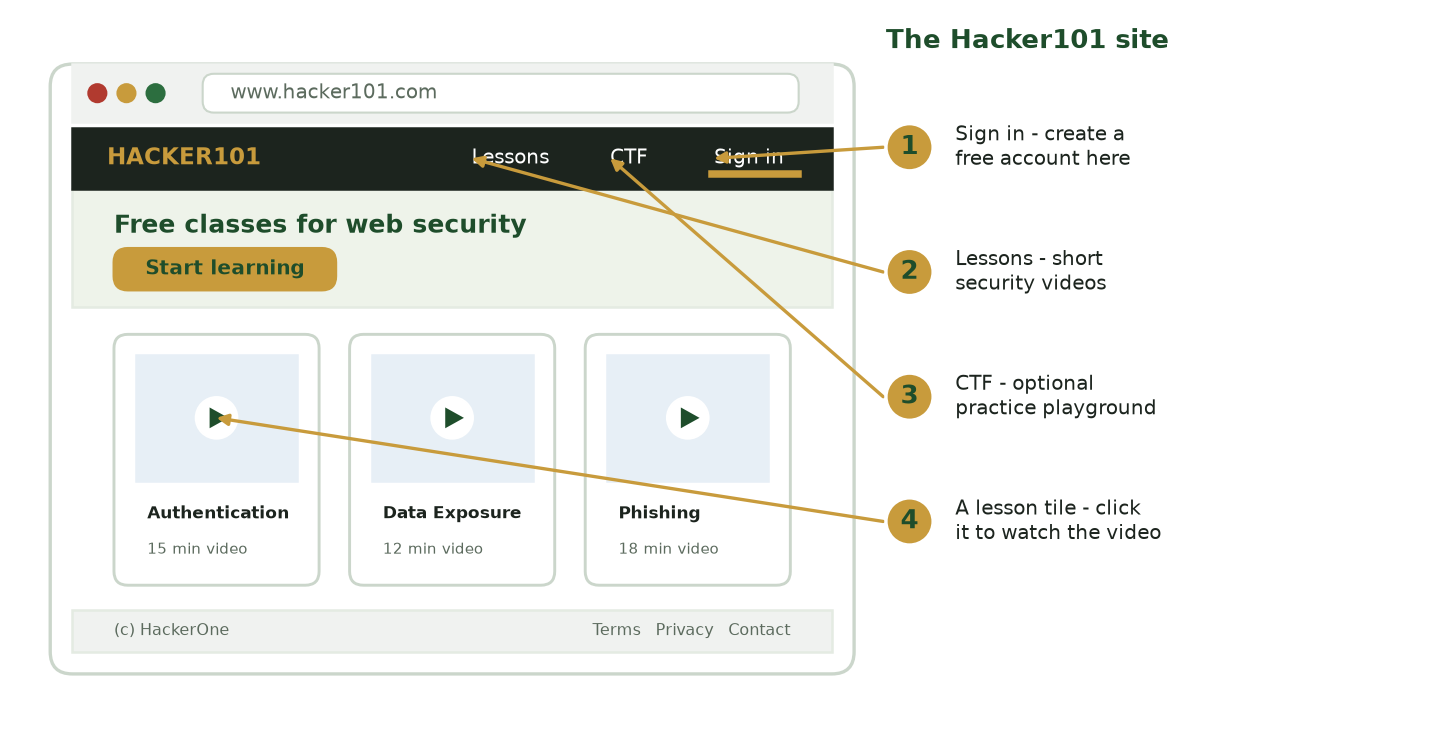
Figure 2. The four things to find on the Hacker101 home page: Sign in, the Lessons page, the optional CTF, and a clickable lesson tile. Illustration - your screen may differ slightly.
The four numbers above map to the four pieces a beginner needs. Everything you do for a graded worksheet starts from just two of them: the Sign in link (once, to make your account) and the Lessons page (every activity after that). The pieces to find:
- Top menu bar. Runs across the top of every page. It has links such as Videos or Lessons, CTF, and Resources, with Sign in on the far right.
- The Lessons / Videos page (
https://www.hacker101.com/lessons). This is where you will spend almost all your time. It shows a grid of lesson cards, each with a title and a run time. Click a card to open that lesson’s video page. - The video player. Inside a lesson you get a normal video window with a play/pause button, a volume control, a timeline you can drag to rewind, and a fullscreen button. You can pause any time to take notes - you will do this a lot.
- The CTF link. “CTF” stands for Capture The Flag - an optional practice playground of intentionally broken sample apps. You do not need the CTF to complete any CIS 350 worksheet. It is there if you get curious later.
- The Resources / search area. Useful for finding a lesson by keyword if the exact title in your worksheet is worded a little differently.
That is the whole tool. If you can browse a website and play a video, you can use Hacker101.
4. How you will use it in this course
CIS 350 uses Hacker101 in four weeks. Each week pairs one short lesson with a PDF worksheet of guided questions. You download the worksheet (posted on Canvas and linked from each week’s lecture-notes page), watch or study the lesson, type or write your answers, and submit the finished worksheet on Canvas. Each activity is worth 20 points and takes about 30 to 40 minutes.
| Week | Lesson topic | What you do | How you submit |
|---|---|---|---|
| 1 (Activity 2) | Weak Password Storage and Authentication | Watch the lesson, then answer guided questions and design a simple password policy | Submit the completed worksheet PDF on Canvas |
| 2 | Data Exposure and Privacy Violations | Watch/study the lesson, answer guided questions, connect it to the Lab 2 data work | Submit the completed worksheet PDF on Canvas |
| 3 | Phishing and Social Engineering | Complete the lesson, answer guided questions on how attackers trick people | Submit the completed worksheet PDF on Canvas |
| 6 | Intrusion Detection and Anomaly Analysis | Study the lesson, answer guided questions, build a short detection/triage checklist | Submit the completed worksheet PDF on Canvas |
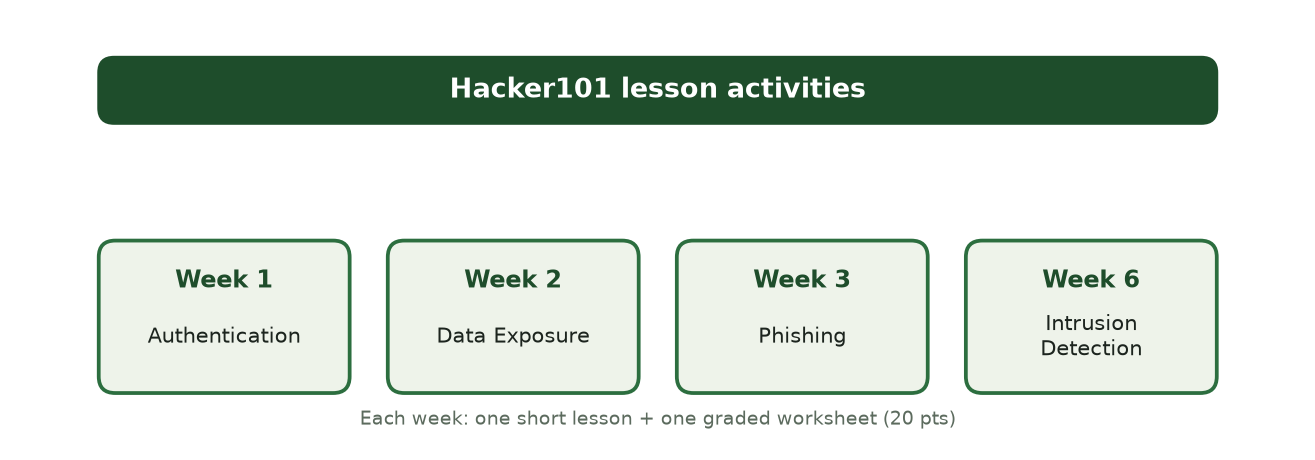
Figure 3. The four CIS 350 weeks that use a Hacker101 lesson, each worth 20 points. Illustration - your screen may differ slightly.
Notice the topics build on each other: you start with how logins and passwords fail (Week 1), move to how data leaks (Week 2) and how people get tricked (Week 3), and finish with how defenders spot an attack in progress (Week 6). Four short lessons, 80 points total.
For the exact wording of each week’s activity, see the Weekly Activities page. For the labs those worksheets refer back to, see the Labs page.
5. Step-by-step: completing an activity end to end
Let us walk through Week 1, Activity 2 (Weak Password Storage and Authentication) from open to submit. Every Hacker101 week follows this same shape, so once you do one you can do them all.
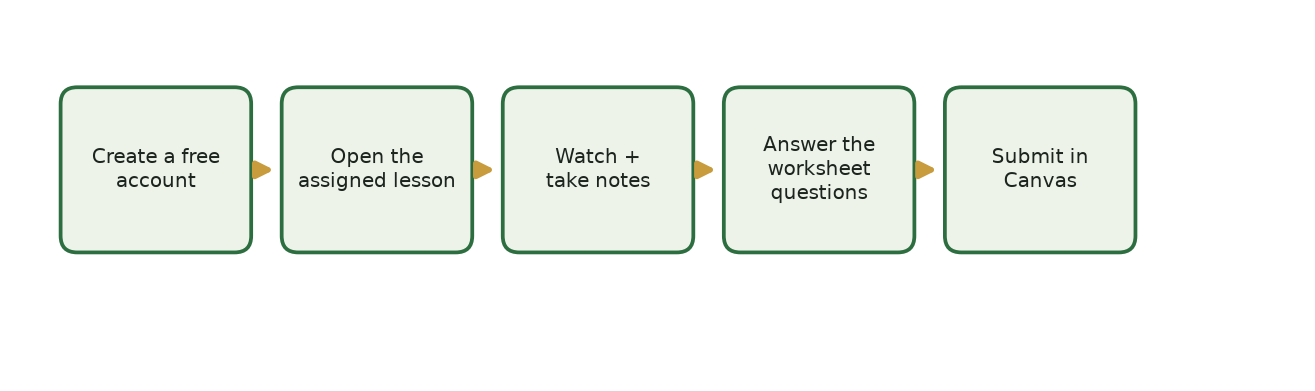
Figure 4. The whole activity in five steps - the same flow every week. Illustration - your screen may differ slightly.
The account step (first box) is a one-time setup; from Week 2 onward you jump straight to “Open the assigned lesson.” The detailed numbered steps below simply expand the middle three boxes - watching, answering, and getting your file ready to submit.
- Get the worksheet. On Canvas, open the Week 1 activity and download the worksheet PDF (also linked from the week’s lecture-notes page). Open it so you can see the questions while you watch. The worksheet is your roadmap.
- Do the warm-up. Before watching, the worksheet asks you to jot a gut answer to a question or two (for example, “How do you think websites store your password?”). Write whatever you think - there is no wrong answer here. You will revisit it after the lesson.
- Open the lesson. Go to
https://www.hacker101.com/lessons, find the card titled “Weak Password Storage and Authentication” (or use the fallback resource if that is what Canvas listed), and click it to open the video. - Watch and take notes. Play the video (about 15 minutes). Pause whenever you want. As you watch, jot notes on the things the worksheet flags - for Week 1 that is: how passwords should be stored, what “hashing” means, why a “salt” helps, and any real-world breach examples mentioned. You are watching to understand, not to memorize.
- Answer the guided questions (Task 2). There are about five short questions, such as “What is the difference between encryption and hashing?” and “Why is storing passwords in plain text dangerous?” Answer in your own words, a few sentences each. It is fine to rewind the video to check something.
- Connect it to your lab (Task 3). The worksheet ties the lesson back to the week’s lab (for Week 1, the password data from Lab 1). Answer those follow-up questions - this is where you show you can connect the idea to real data.
- Apply it (Task 4). You design something practical - for Week 1, a short password policy for an imaginary company, with a sentence explaining each rule. Aim for five to seven clear requirements. There is no trick; graders want practical, sensible thinking.
- Reflect (Task 5). A few closing questions like “What surprised you?” and “What will you change about your own passwords?” Answer honestly in a sentence or two.
- Save and submit. Save your completed worksheet as a PDF (if you typed into the PDF) or scan/photograph your handwritten pages into one PDF. Go to the Week 1 activity on Canvas, click Submit or Upload, attach your file, and confirm it uploaded. Done - that is your 20 points.
6. Troubleshooting
| Problem | Exact fix |
|---|---|
| The sign-up email never arrives | Check your spam/junk folder. Still nothing after a few minutes? You can watch most lessons without an account - just go to the Lessons page and start. The graded part is the worksheet, not the login. |
| The video will not play | Try a different browser (Chrome or Edge), refresh the page, and make sure a strict ad blocker or the school network is not blocking video. On campus Wi-Fi, switching to a personal hotspot often fixes it. |
| I cannot find the lesson named in my worksheet | Hacker101’s catalog changes over time. Use the search or Resources area, or use the official fallback resource (OWASP/CISA/NIST) listed in that week’s engagement pack on Canvas. Either source is accepted. |
| The lesson feels too technical | You do not need to follow every technical detail. Focus on the plain-language idea: what goes wrong, and why it matters. That is what the worksheet questions ask about. |
| I do not know how to save my answers as a PDF | If you typed into the PDF, use File -> Save or File -> Export as PDF. If you wrote by hand, take clear photos and combine them into one PDF (your phone’s Files or Notes app can usually do this), or use a free scanner app. |
| I ran out of time in class | These activities can be finished as homework - check Canvas for the due date. The worksheet is the same whether done in class or at home. |
| Canvas will not accept my upload | Make sure the file is a single PDF and under the size limit. If it is a photo set, combine them into one PDF first. Try a different browser if the upload button does nothing. |
| Do I have to use the CTF playground? | No. The CTF is optional and not required for any Hacker101 worksheet in this course. Skip it unless you are curious. |
7. Rules of engagement and ethics
Security skills come with responsibility, and this is the one section to read twice.
- Practice only where you are allowed. Hacker101’s lessons and its CTF are built as intentionally vulnerable practice material. They exist so people can learn safely. That is the only place these ideas may be tried out.
- Never test a system you do not own or are not authorized to test. Poking at a real website, app, account, or network without clear permission is illegal - even if “nothing breaks” and even if you are just curious. It is also a violation of the course academic-integrity policy.
- In CIS 350, you only ever work inside the environments we provide: the Hacker101 lessons, our course CTFd sandbox, and the tabletop discussions. Nothing you do for this class should ever touch a live, real-world system.
- You are learning defense. The point of studying how attacks work is to build and protect systems that resist them - the same reason a locksmith studies locks. Keep that framing and you will always be on the right side of the line.
If you are ever unsure whether something is allowed, the answer is simple: ask your instructor first, and do not touch it until you have a clear yes.
8. Getting help + quick-reference checklist
Stuck? Get help in this order:
- Re-read the worksheet instructions and this guide’s troubleshooting table.
- Post your question in the course forum or discussion board on Canvas - a classmate or TA may have hit the same thing.
- Bring it to office hours or ask during class. No question is too basic in this course.
Quick-reference checklist (glance at this during the activity):
- Worksheet downloaded from Canvas and open in front of me
- Warm-up answered before watching
- Correct lesson open at
https://www.hacker101.com/lessons(or the listed OWASP/CISA/NIST fallback) - Notes taken while watching (pause and rewind freely)
- All guided questions answered in my own words
- Lab-connection questions answered
- Application task done (policy or checklist, with short explanations)
- Reflection questions answered honestly
- Worksheet saved as a single PDF
- PDF uploaded and confirmed on Canvas before the due date
You have got this. Watch, think, write, submit - that is the whole activity.