
Guide: CTFd (Capture the Flag)
New to all of this? Good - this guide assumes you have never written a line of code, never “hacked” anything, and have never heard the phrase “capture the flag.” By the end you will know exactly what CTFd is, how to get into it, and how to go from “what is this?” to “I submitted my flag and got the points.” Keep this page open in one browser tab and your challenge open in another while you work.
CIS350{...}, and you paste that code into the CTFd website to score points.
Every single activity this semester follows the same six-step loop, no matter which week or which challenge you are on. It is worth burning this picture into your memory now, because once you have done it once, you have done all five:
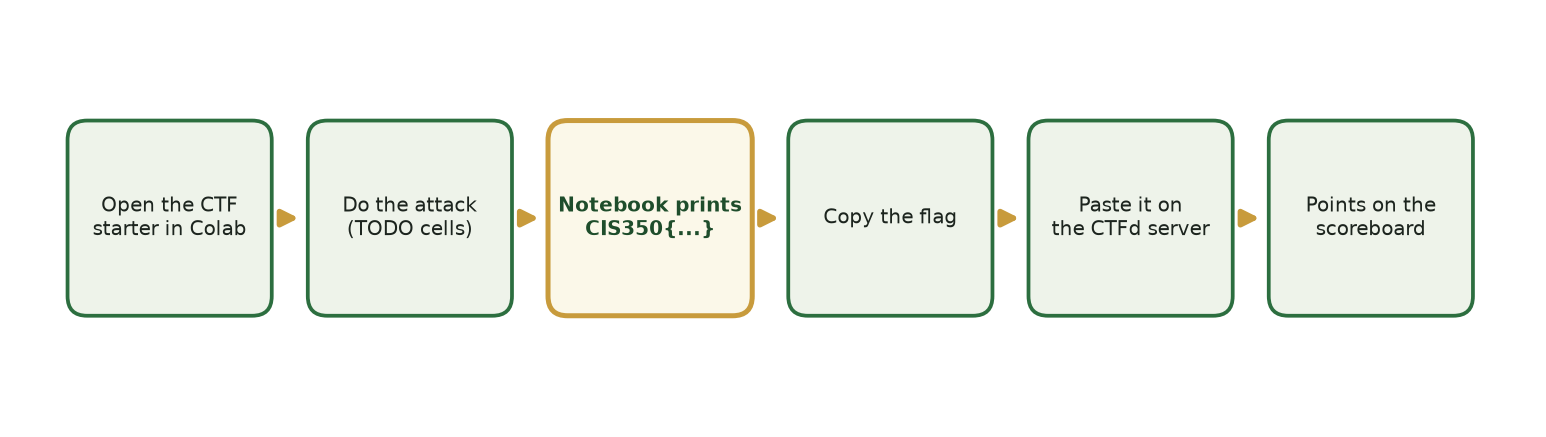
Figure 1. The core CTFd loop, start to finish - the flag is printed by the notebook, then submitted on the server. Illustration - your screen may differ slightly.
1. What this is and why CIS 350 uses it
CTFd is a website that keeps score for a game called Capture the Flag (CTF). In a security CTF, each “challenge” is a small, safe puzzle. When you solve it, the puzzle hands you a secret string of text - the flag. You prove you solved it by turning in that flag. CTFd is just the scoreboard: it shows the list of challenges, it checks the flag you submit, and it awards points and updates the rankings.
Think of it like a scavenger hunt at a museum. Each stop has a locked box, and inside is a card with a code word. You do the little task at that stop, the box opens, you read the code word, and you write it on your entry sheet at the front desk to prove you were there. CTFd is the front desk. The “locked box” for us is a Google Colab notebook, and the “code word” is your flag.
Why does a business course use this? Because the best way to understand how AI systems get attacked - and how to defend them - is to safely try an attack yourself, once, in a sealed sandbox. Every challenge in this course is an intentionally weak, made-up “toy” model built only for practice. You are the authorized red-team analyst. Doing the attack yourself makes the defense stick in a way that reading about it never will.
One important thing to know up front: the flag is not your grade. The flag is just proof that you genuinely made the attack work - a completion signal. What your instructor actually grades is your activity worksheet, where you paste your code, your result, and a short reflection on why the attack worked and how you would defend against it. So getting the flag is the fun checkpoint; explaining it is the real learning.
2. Before you start / first-time setup
You will use CTFd five times this semester (Weeks 8, 10, 11, 13, and 15). You only create your account once; after that you just log in.
What you need: a web browser, the course CTFd address (posted on Canvas), and a Google account for Colab. Nothing to download or install.
- Find the CTFd link. Your instructor posts the exact web address on Canvas - we will call it [your course CTFd URL - posted on Canvas]. Click it, or paste it into your browser’s address bar and press Enter.
- You will land on the course CTF home page. Look in the top-right corner for two links: Register and Login.
- First time only: click Register. You will see a short form with three boxes: a username (pick something you are comfortable seeing on a public scoreboard - your real name or a nickname; check Canvas if your instructor requires a specific format), an email, and a password. Fill them in.
- Click the Submit (or Register) button. CTFd logs you in automatically and drops you on the main challenges screen.
- Every time after that: click Login instead, type the username/email and password you chose, and click Submit.
The registration form is short - three boxes and a button. Here is what it looks like:
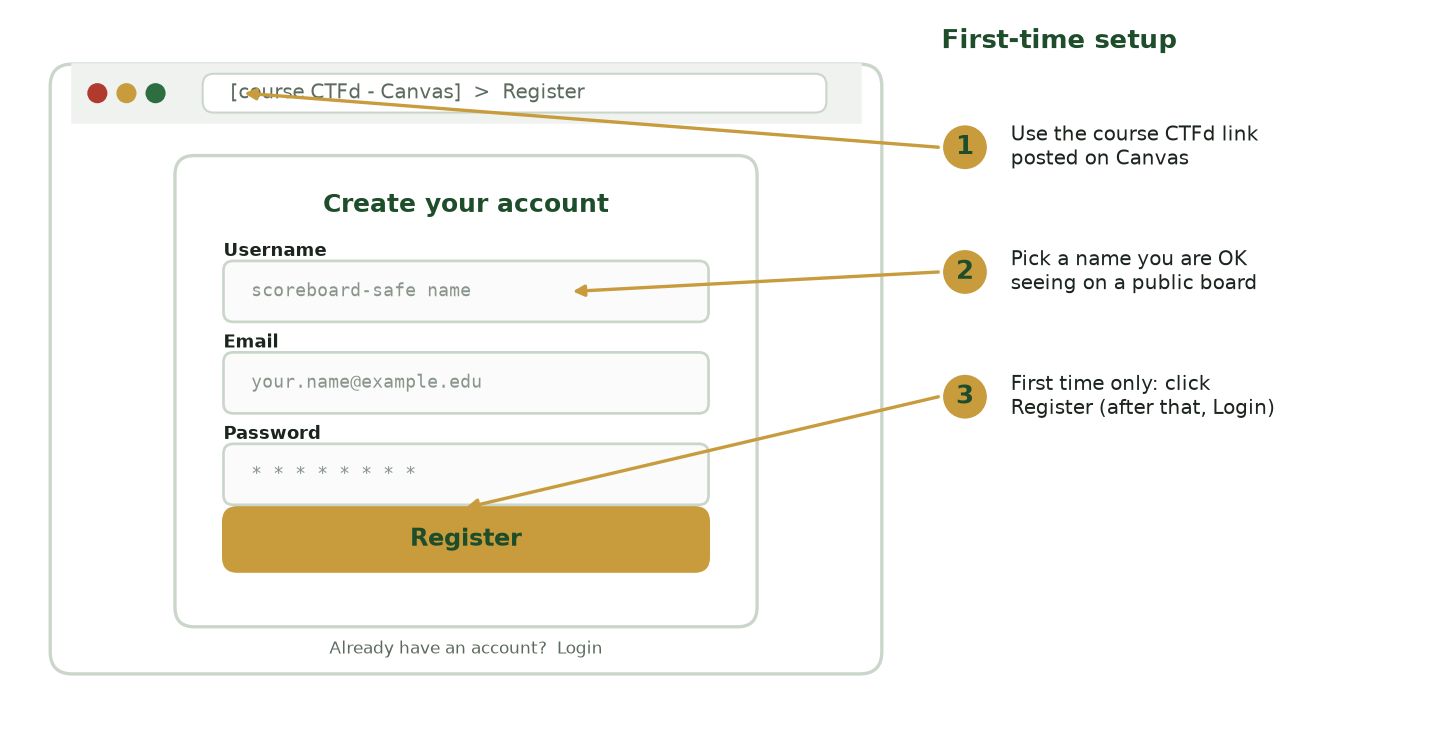
Figure 2. The first-time register form: fill in a username, email, and password, then click Register once (after that you just Login). Illustration - your screen may differ slightly.
If you have never opened a Colab notebook before, read the Colab guide first. That guide is the “how do I run a notebook” companion to this one; this guide is the “how do I turn in the flag” half.
3. A guided tour of the interface
After you log in, CTFd is a small website with a menu bar across the top. From left to right you will typically see: the course/event name (click it any time to get home), and then tabs named Challenges, Scoreboard, and your account/profile (often your username, in the top-right). Here is a rough sketch of the layout:
+-----------------------------------------------------------+
|  CIS 350 CTF     Challenges   Scoreboard        yourname v |
+-----------------------------------------------------------+
|                                                           |
|   [ Evasion ]   [ Adversarial ML ]   [ LLM Security ] ... |   <- category filters
|                                                           |
|   +-------------------+   +-------------------+           |
|   | Evade the Filter  |   | One Pixel Too Far |           |   <- each box is a
|   | 15 pts            |   | 20 pts            |           |      challenge card
|   +-------------------+   +-------------------+           |
|                                                           |
+-----------------------------------------------------------+
The Challenges page is where you will spend your time. It shows a grid of cards. Each card is one challenge and displays its name (for example, “Evade the Filter”), its category (a topic label such as Evasion, Adversarial ML, LLM Security, Privacy, or Robustness), and its point value. Cards may be grouped by category. A challenge you have already solved is usually marked (a checkmark or a color change). Some challenges may be locked/hidden until your instructor releases that week - if you do not see this week’s challenge yet, it simply has not been unlocked. Do not worry; it will appear.
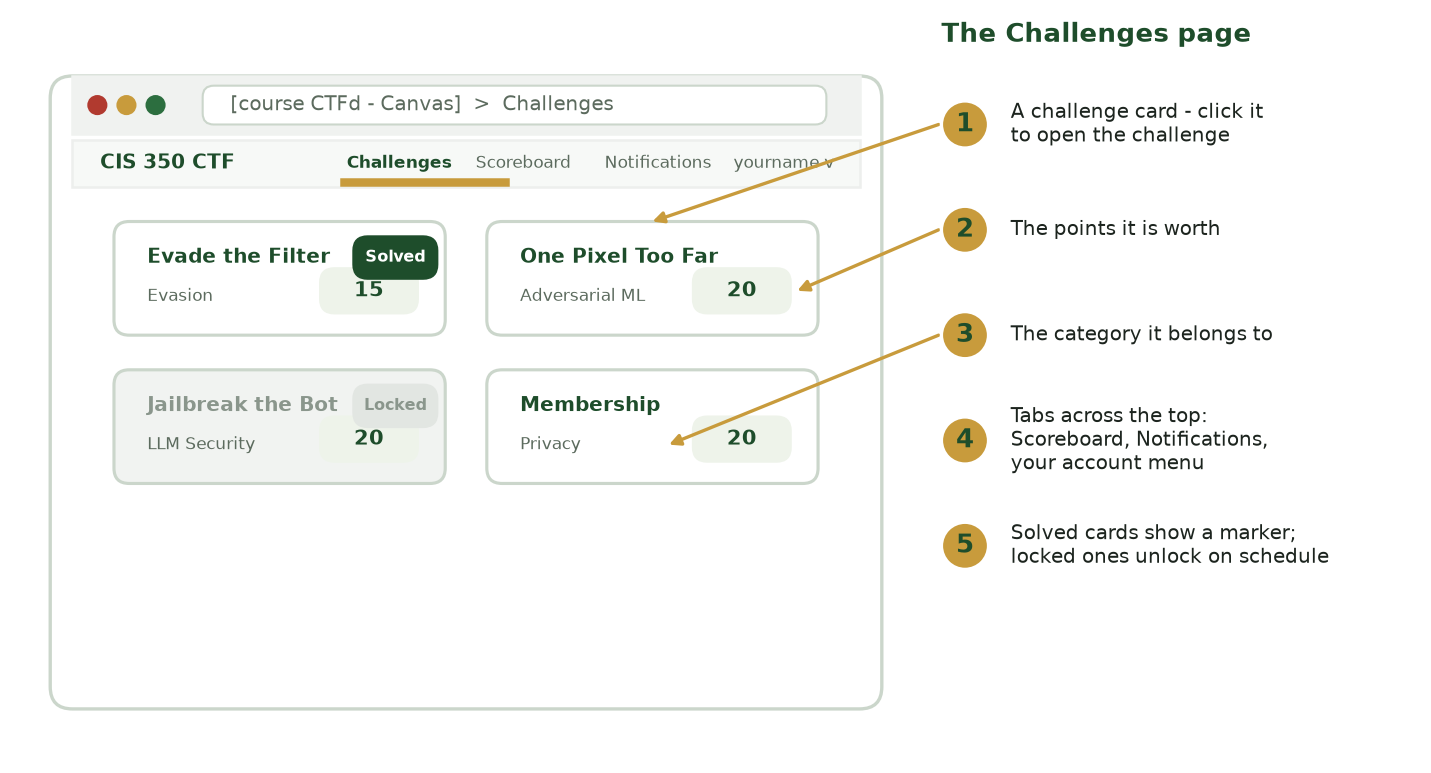
Figure 3. The Challenges page: click a card to open it, read its point value, and note its category. Illustration - your screen may differ slightly.
To open a challenge, click anywhere on its card. The point value (the small number on the card) is how much that challenge is worth if your flag is correct; the category is just the topic it teaches. The Scoreboard tab lives across the top next to Challenges.
Clicking a challenge card opens a pop-up window. Inside you will see the challenge’s
description (the same brief you read in the course materials - the scenario and what to
submit), often a link to the Colab starter notebook, sometimes a Hint button, and -
the part you care about most - a text box labeled “Flag” with a Submit button next to
it. That box is where your CIS350{...} code goes.
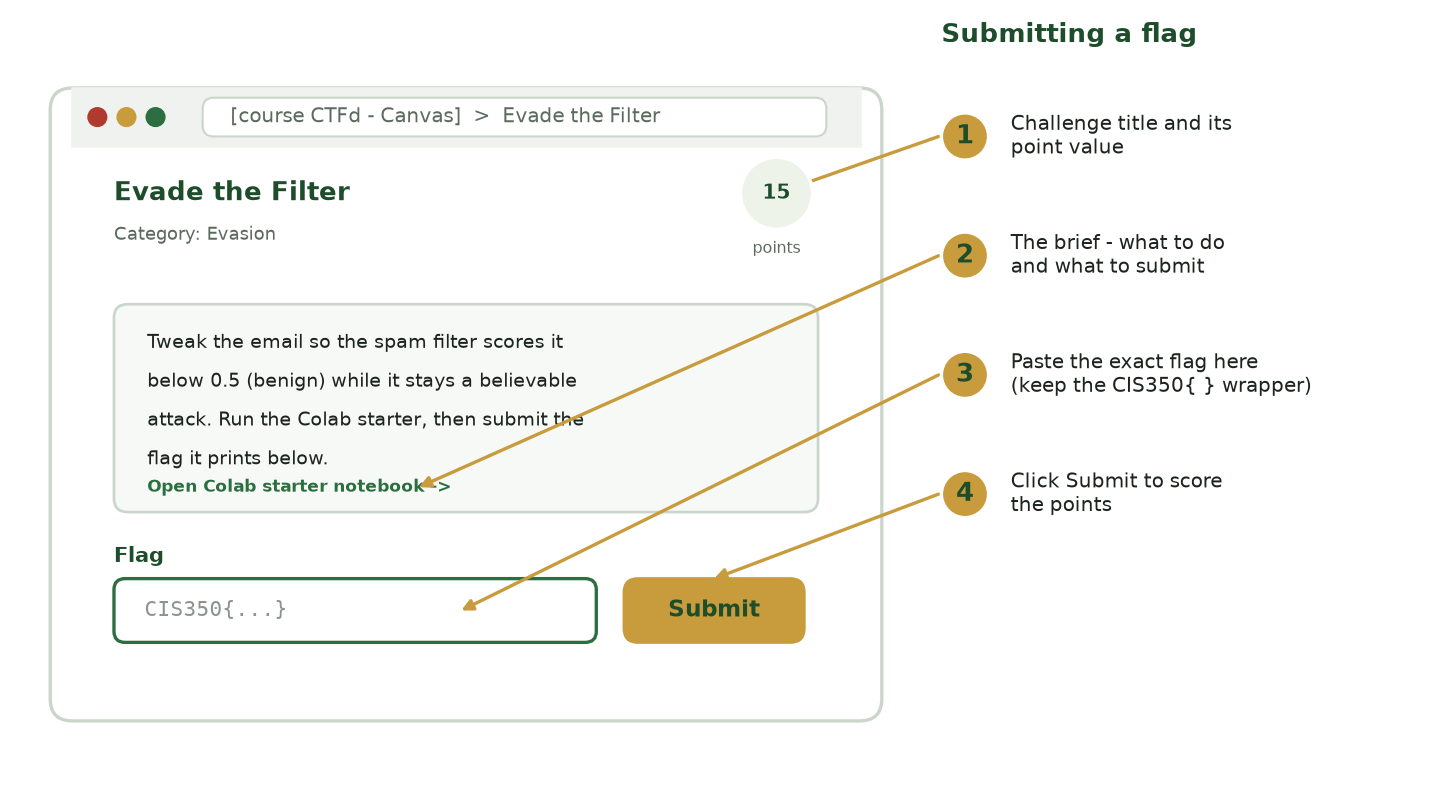
Figure 4. Submitting a flag: paste the exact string into the Flag box - it is case-sensitive and must keep the CIS350{ } wrapper - then click Submit. Illustration - your screen may differ slightly.
When you paste, make sure the box holds the whole flag and nothing else: the CIS350{, the
text inside, and the closing }, with no leading or trailing spaces. The check is
case-sensitive, so a lowercase letter where the notebook printed a capital will be rejected.
After you click Submit, CTFd tells you right away whether the flag was accepted. A green message means you scored the points; a red one means try again - almost always a copy-paste slip, not a wrong answer.
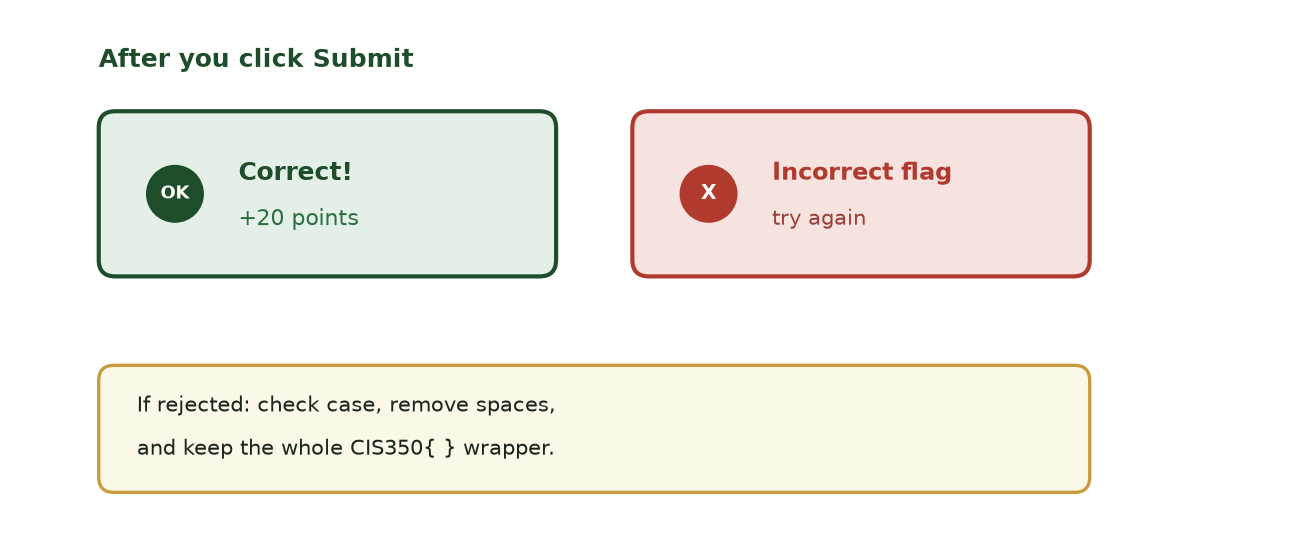
Figure 5. The two responses after submitting - and the quick fixes when a flag is rejected. Illustration - your screen may differ slightly.
The Scoreboard tab shows everyone’s points and ranking. It is just for fun and motivation; you never have to look at it, and your grade does not depend on your rank.
Your account menu (top-right) lets you see your own solved challenges and log out.
4. How you will use it in this course
CTFd is used for exactly five activities. Each one follows the identical rhythm: open the Colab starter, do the attack, copy the flag it prints, submit the flag here on CTFd, then fill in your worksheet. The table shows the specifics.
| Week | Challenge (category) | Points | What you actually do | How you submit |
|---|---|---|---|---|
| 8 | Evade the Filter (Evasion) | 15 | Tweak a phishing email’s features so a spam filter scores it “benign” while it stays a believable attack | Paste the flag on CTFd; put your email dictionary, output, and defense note in the Week 8 worksheet |
| 10 | One Pixel Too Far (Adversarial ML) | 20 | Add a tiny, near-invisible change to an image so the model reads the wrong digit | Paste the flag on CTFd; worksheet holds your code, output, and reflection |
| 11 | Jailbreak the Helpdesk Bot (LLM Security) | 20 | Write a “prompt injection” message that tricks a guarded chatbot into leaking its secret | Paste the flag on CTFd; Lab 9 worksheet holds your winning message and defense |
| 13 | Were You in the Data (Privacy) | 20 | Run a membership-inference attack: guess which records were used to train a model, from its confidence alone | Paste the flag on CTFd; worksheet holds your code, output, and reflection |
| 15 | The Aging Malware Detector (Robustness) | 20 | Fine-tune an out-of-date detector with only a few new labels so it works on newer threats again | Paste the flag on CTFd; worksheet holds your code, output, and reflection |
Each challenge ties to that week’s lecture and lab, so you will already have seen the ideas before you attempt the CTF. For the full description of what each activity asks, see the Activities page. Remember: CTFd points are the completion checkpoint; the worksheet is what is graded.
5. Step-by-step: completing an activity end to end
Let’s walk the Week 8 challenge, Evade the Filter, from open to submit. Every other week works the same way, so once you have done this you have done them all.
- Read the brief. On CTFd, open this week’s challenge card and read the description, or read it on the Activities page. Week 8’s job: build an email that a phishing filter scores below 0.5 (so it calls it “benign”) while the email still asks for credentials, still has an urgent word, and still has a link.
- Open the starter notebook in Colab. Click the Colab starter link (on the challenge
card or on the Activities page). If it opens in Colab, great. If it downloads a
.ipynbfile instead, go to Google Colab and choose File -> Upload notebook to open it. New to this? The Colab guide shows every click. - Run the setup cells top to bottom. Click the first code cell and press Shift+Enter to run it, then continue down; or use Runtime -> Run all. These cells build the toy filter for you. Nothing to install - Colab already has what you need.
- Find the TODO cell and do the attack. Scroll to the cell marked
TODO. For Week 8 you edit a small Python dictionary describing your email - for example turning down the number of urgent words and links just enough to slip under the 0.5 line, while keepingcred_requestset to 1. Change the values, then run that cell with Shift+Enter. - Run the check cell. Below the TODO cell is a
check(...)cell. Run it. If your attack did not fully succeed, it will tell you what is still wrong (for example, the score is still too high) - adjust and run again. This is normal; expect a few tries. -
Copy the flag. When you genuinely succeed, the notebook prints something like:
SUCCESS! Flag: CIS350{ev4de_the_f1lter_2024}Select and copy the entire flag, from the
CinCIS350through the closing}- including the braces, and nothing extra. - Submit the flag on CTFd. Go back to your CTFd tab, open the Week 8 challenge card, click the Flag text box, paste the flag, and click Submit. A green “Correct” (or similar) message means you scored the points. Done on the scoreboard side.
- Fill in your worksheet. Open the Week 8 activity worksheet and paste in your winning email dictionary, the flag, and one or two sentences on why the filter was fooled and one defense that would stop it. Submit the worksheet in Canvas. This is the graded part.
That’s the whole loop: read, run, attack, check, copy, submit, reflect.
6. Troubleshooting
| Problem | What’s happening | The fix |
|---|---|---|
| CTFd says my flag is wrong / incorrect | The flag must match exactly, and it is case-sensitive | Re-copy the whole string including CIS350{ and the closing }. Delete any stray space before or after it. Match capitalization exactly. Do not retype it - copy and paste. |
| I pasted extra text or a line break | You grabbed more than the flag | Paste it, then delete everything before CIS350{ and after }. The box should contain only the flag. |
| The notebook never prints a flag | The success conditions are not all met yet | Re-read the “Success condition” in the brief - usually more than one thing must be true at once. Re-run the check(...) cell after each change. A too-easy answer (for example, a harmless email) will not count. |
| The starter will not run / red errors | Cells were run out of order, or the runtime disconnected | Run cells top to bottom (Runtime -> Run all). If it is still stuck, Runtime -> Restart runtime, then run all again. For anything Colab-specific, see the Colab guide. |
| I don’t see this week’s challenge on CTFd | It may not be unlocked yet | Challenges are released on a schedule. Check Canvas for the release time; refresh the Challenges page. |
| I can’t log in | Wrong username/password, or you are trying to register again | Use Login, not Register (you only register once). If you forgot your password, use the reset option or ask your instructor. |
| I lost my flag after closing Colab | The notebook resets when it disconnects | Just re-run the notebook (Run all) and re-do the TODO cell; it will print the flag again. |
7. Rules of engagement
- Attack only the provided sandbox. The only thing you are authorized to test is the challenge notebook itself. Nothing else.
- Never apply these techniques anywhere else. Trying these attacks on any real website, account, model, or system you do not own or are not explicitly authorized to test is illegal and a violation of the course academic-integrity policy.
- The point is defense. You practice the attack in a safe box so you can recognize and stop it in the real world. Your worksheet’s defense reflection is where that lands.
If you are ever unsure whether something is in bounds, the answer is: only the sandbox we provided, and nothing more. When in doubt, ask your instructor first.
8. Getting help + quick-reference checklist
Where to get help, in order:
- This guide’s Troubleshooting table (Section 6) and the Colab guide for notebook problems.
- The challenge brief (the description on the CTFd card and on the Activities page) - re-read the success condition.
- The Hint button on the CTFd challenge card, if one is offered.
- Your instructor or TA - post in the Canvas Q&A or come to office hours. Say which week’s challenge, what you tried, and the exact error or message you see.
Quick-reference checklist - glance at this while you work:
- Logged in to CTFd at [your course CTFd URL - posted on Canvas] (Login, not Register).
- Opened this week’s challenge and read its brief / success condition.
- Opened the Colab starter and ran all cells top to bottom.
- Edited the
TODOcell to perform the attack. - Ran the
check(...)cell and sawSUCCESS! Flag: CIS350{...}. - Copied the WHOLE flag, including
CIS350{and the closing}, no extra spaces. - Pasted it into the CTFd Flag box and clicked Submit -> saw “Correct.”
- Filled in the week’s worksheet (code + output + why-it-worked + one defense).
- Submitted the worksheet in Canvas. (This is the graded part.)
You’ve got this. Take it one cell at a time, expect a few tries before the flag appears, and remember the flag is just the fun checkpoint - your thinking on the worksheet is what counts.